

Charge clients with rebilling and Stripe in Centerfy
Connect Stripe and configure per-sub-account rebilling to charge clients for platform usage through your own payment processor.
Rebilling lets you charge clients for platform usage through your own Stripe account. You set the pricing — a flat fee, per-usage markups, or both — and funds land in your Stripe account.
Connecting Stripe
- Open Billing settings
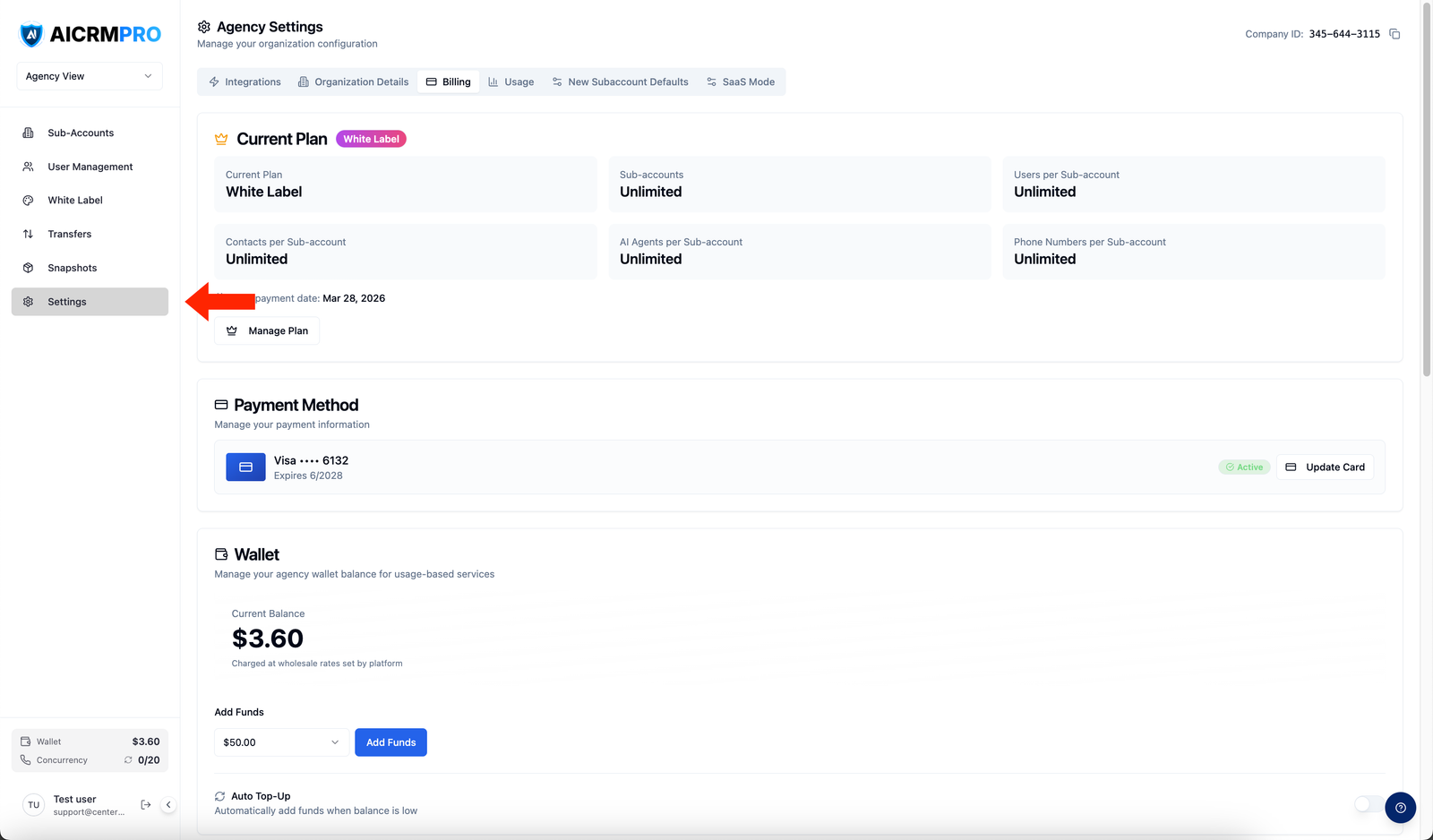
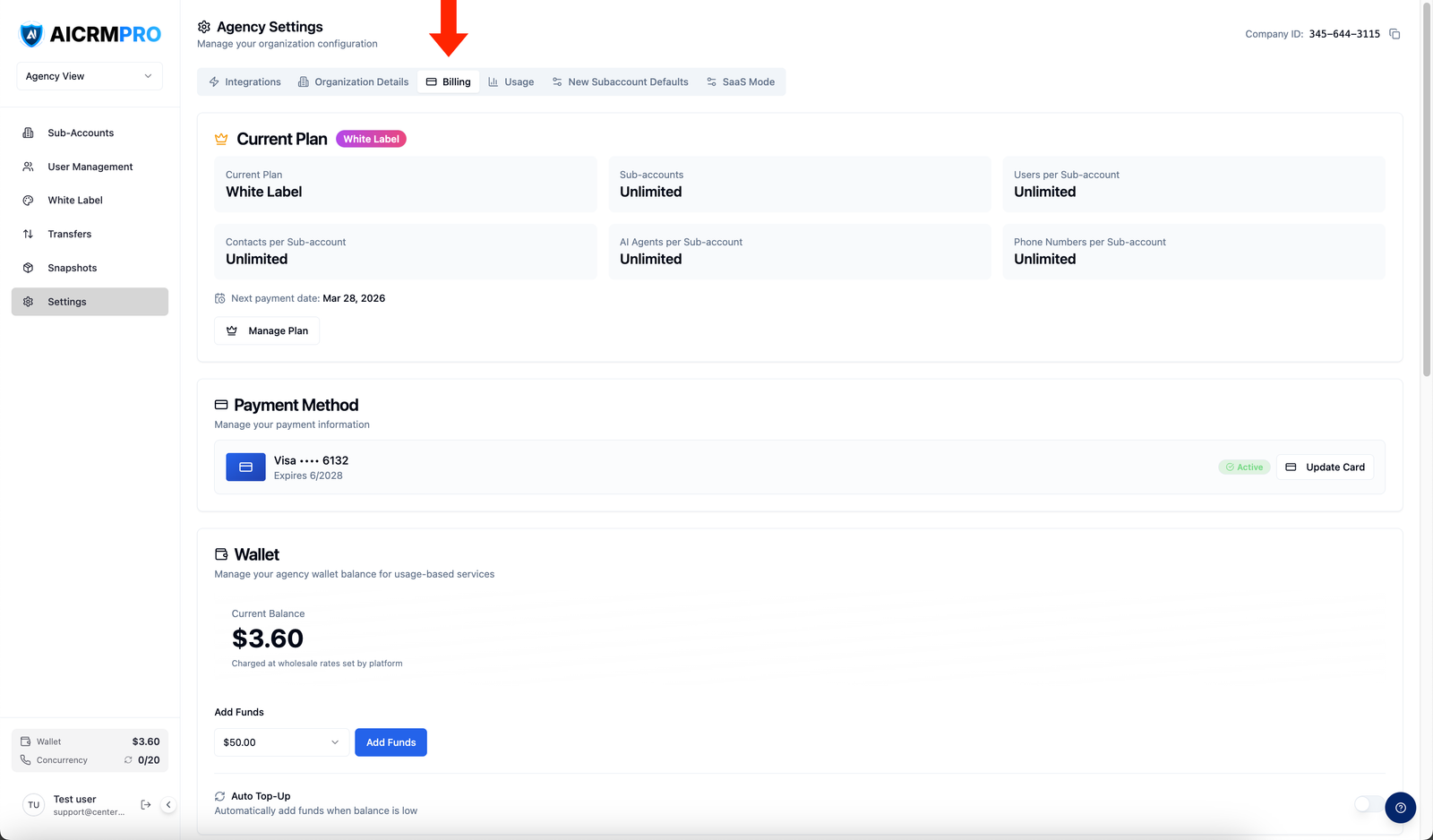
Go to Agency Workspace > Settings and select the Billing tab. Click Connect Stripe or Enter API Keys.
- Enter your Stripe API keys
Provide your Stripe Publishable Key and Secret Key from your Stripe Dashboard under Developers > API keys. Use test keys while setting up.
- Verify the connection
After saving, the panel shows a green connected status. If it shows an error, confirm both keys are correct and both are the same mode (test or live).
Configuring rebilling per sub-account
- Open a sub-account's billing settings
Go to Agency Workspace > Sub-Accounts, click a client account, and select the Billing tab.
- Enable rebilling
Toggle Enable Rebilling on to activate billing for that sub-account.
- Set pricing
Configure the monthly plan price and per-usage rates:
Usage type Billing unit Email Per email sent SMS Per message sent WhatsApp Per message sent Phone call Per minute AI phone call Per minute Phone number rental Per month Knowledge base sources Per source Premium workflow actions Per action
How payments work
- Centerfy calculates usage charges based on the rates you configured.
- Stripe charges the client’s payment method on file.
- Funds are deposited into your connected Stripe account.
- Centerfy records the transaction.
Your clients are billed by your agency via Stripe — Centerfy does not appear on their invoices.
Default rebilling settings
You can set default rebilling rates for all new sub-accounts under Agency Workspace > Settings > New Subaccount Defaults. This saves you from configuring pricing individually each time you create a client account.
Usage tracking
Navigate to Agency Workspace > Settings > Usage to see aggregated usage across all sub-accounts — total calls, SMS sent, emails sent, and active agents. You can filter by date range and drill into individual sub-account usage.