

Build and configure AI agents in the Agent Builder
Use the no-code Agent Builder to configure prompts, voices, tools, and behaviors for your AI agents, then test live before publishing.
The Agent Builder is the configuration interface where you build, customize, and manage every AI agent in your Centerfy account. It’s organized into tabs, each covering a different aspect of the agent’s behavior — from the system prompt that defines its personality, to the tools it can use, to the voice it speaks with. You can test the agent directly in the builder before publishing, and update it at any time without any downtime.
Open the Agent Builder
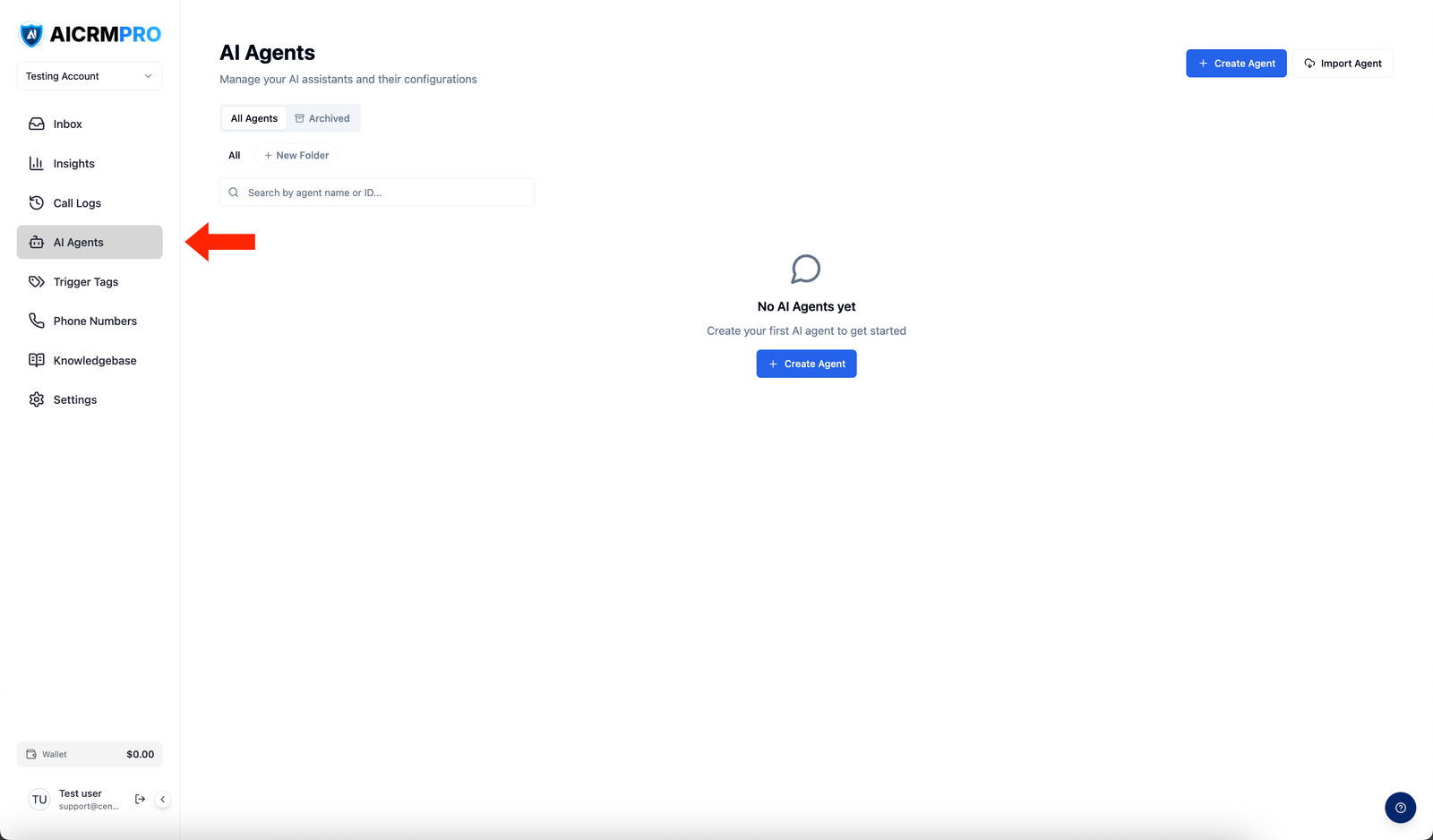
Navigate to AI Agents in your dashboard, then click an existing agent to edit it or click Create Agent to start a new one. The builder opens with all configuration tabs visible across the top of the page.
Builder tabs
General
Set the agent’s basic identity:
- Name: the internal name visible to your team (for example, “Inbound Sales Agent”)
- Description: optional notes about what this agent does
- Agent type: Voice or Chat — set at creation and determines which tabs are available
- Phone number (voice agents): assign the phone number this agent answers or calls from
- Outbound calling (voice agents): enable the agent to make outbound calls
Prompt
Write or generate the system prompt that tells the agent who it is, what it should do, and how it should behave. The Prompt tab includes:
- A full-featured text editor for writing and editing your prompt
- The AI Prompt Generator — a built-in tool that drafts a prompt for you based on a description of your business and goals (see below)
- Undo/redo controls for editing history
Voice (voice agents only)
Choose the voice your agent uses on calls:
- Browse the full voice library and click the preview button to hear each voice before selecting it
- Filter by gender to narrow the options
- Set the agent’s language to match your callers — this controls both speech output and speech recognition
Tools
Enable the actions your agent can take during a conversation. Each tool is a card with a toggle. Enable the tools relevant to your agent’s goals:
Book Appointment
Allows the agent to check your connected calendar for available slots and book an appointment in real time during the conversation. Requires a connected calendar. When enabled, the agent presents available times and confirms bookings without any human involvement.
Add Contact Tag
Applies a tag to the contact’s CRM record based on the conversation outcome or what the contact says. Use this to segment leads automatically — for example, tagging a contact as “Hot Lead” or “Requested Demo” based on their responses.
Create CRM Note
Writes a structured note to the contact’s activity timeline after the interaction. Useful for logging key details — what the caller asked about, what was discussed, next steps — so your team has full context.
Send SMS
Sends an SMS to the contact’s phone number during or after the conversation — for example, a booking confirmation, a follow-up link, or a document the caller requested.
Transfer to Human
Transfers the call to a live team member when the caller requests it or when the agent determines human involvement is needed. Configure the destination phone number and an optional warm transfer prompt — a brief summary the agent reads to the receiving agent before connecting the caller.
Look Up Contact Info
Searches your CRM for an existing contact record during the conversation and uses their stored information (name, company, previous interactions) to personalize the agent’s responses.
Knowledge Base
Link a knowledge base to this agent so it can answer questions accurately using your business content:
- In the Knowledge Base tab, open the dropdown.
- Select the knowledge base you want to use.
- Save the agent.
The agent will use semantic search to retrieve the most relevant content from the knowledge base when it needs to answer a question. See Knowledge Base for instructions on creating and managing knowledge bases.
Advanced
Fine-tune technical behavior and post-call actions:
- Call recording: enable or disable automatic recording (on by default for voice agents)
- Voicemail detection: configure what the agent does when it reaches a voicemail
- Max call time: set a maximum call duration in minutes
- Silence timeout: how long the agent waits in silence before prompting the caller
- Post-call actions: trigger tags, CRM notes, or workflows automatically after each call ends
- Concurrency: configure how many simultaneous calls or conversations the agent can handle
AI Prompt Generator
If you’re unsure how to write a system prompt, use the AI Prompt Generator built into the Prompt tab:
- Click Generate Prompt in the Prompt tab.
- Describe your business, the agent’s role, and your goals in plain language — for example: “We’re a dental clinic. The agent answers inbound calls, books appointments, and answers questions about our services.”
- The generator produces a complete system prompt you can use immediately or edit further.
- Paste it into the prompt editor, then customize it to reflect your exact requirements.
Voice Lab
Voice Lab lets you simulate a real conversation with your voice agent before publishing it. Use it to verify the agent follows your prompt correctly, responds naturally, and takes the right actions.
To test with Voice Lab:
- Open the agent in the Agent Builder.
- Click Voice Lab at the top of the page.
- Speak with the agent as if you were a caller.
- Review the transcript and verify the agent’s behavior.
- Return to the configuration, make adjustments, and re-test until you’re satisfied.
Test common scenarios your callers will encounter — qualification questions, objections, booking requests, and edge cases like callers who don’t know what they want.
Publish an agent
When your configuration is ready:
- Click Save and Publish in the top-right corner of the builder.
- The agent goes live immediately — no deployment step required.
Updates to an already-published agent follow the same process. Changes take effect as soon as you save and publish, and there is no downtime during the update.