Invite team members and manage their permissions in Centerfy
Invite team members, assign roles that control what each person can access, and remove users from your Centerfy AI account when needed.
The Users settings let you control who can access your Centerfy account and what they can do once they’re in. Each team member gets a role that defines their level of access — from full administrative control to a focused view limited to conversations and assigned contacts. You can invite new users, change roles, and remove access at any time.
Roles
Centerfy uses four roles for sub-account access. Choose the role that matches what each team member needs to do their job.
Admin
Full access to everything in the account: agents, contacts, conversations, campaigns, analytics, billing, and all settings. Admins can invite and remove other users, change roles, and modify integrations.
Assign this role to account owners and senior operations staff who need unrestricted access.
Manager
Access to agents, contacts, campaigns, and analytics. Managers can create and edit AI agents, manage contacts, run campaigns, and view reporting.
Managers cannot access billing, change account-level settings, or modify white label configuration.
Assign this role to team leads and supervisors.
User
Access to the Conversations inbox and contacts assigned directly to them. Users can reply to conversations, update contact records, and manage their own calendar.
Users cannot modify agents, access campaign settings, or view account-level configuration.
Assign this role to sales reps and support agents who work contacts day-to-day.
Read Only
View-only access to the areas available to the User role. Read Only users cannot make changes, send messages, or update records.
Assign this role to stakeholders who need visibility without edit access.
Permissions by role
| Feature | Admin | Manager | User | Read Only |
|---|---|---|---|---|
| AI agents (create/edit) | ✓ | ✓ | — | — |
| Contacts (view/edit) | ✓ | ✓ | Assigned only | View only |
| Conversations inbox | ✓ | ✓ | ✓ | View only |
| Campaigns | ✓ | ✓ | — | — |
| Analytics & reporting | ✓ | ✓ | — | — |
| Integrations | ✓ | — | — | — |
| Billing | ✓ | — | — | — |
| Account settings | ✓ | — | — | — |
| Invite / remove users | ✓ | — | — | — |
| White label settings | ✓ | — | — | — |
Inviting a team member
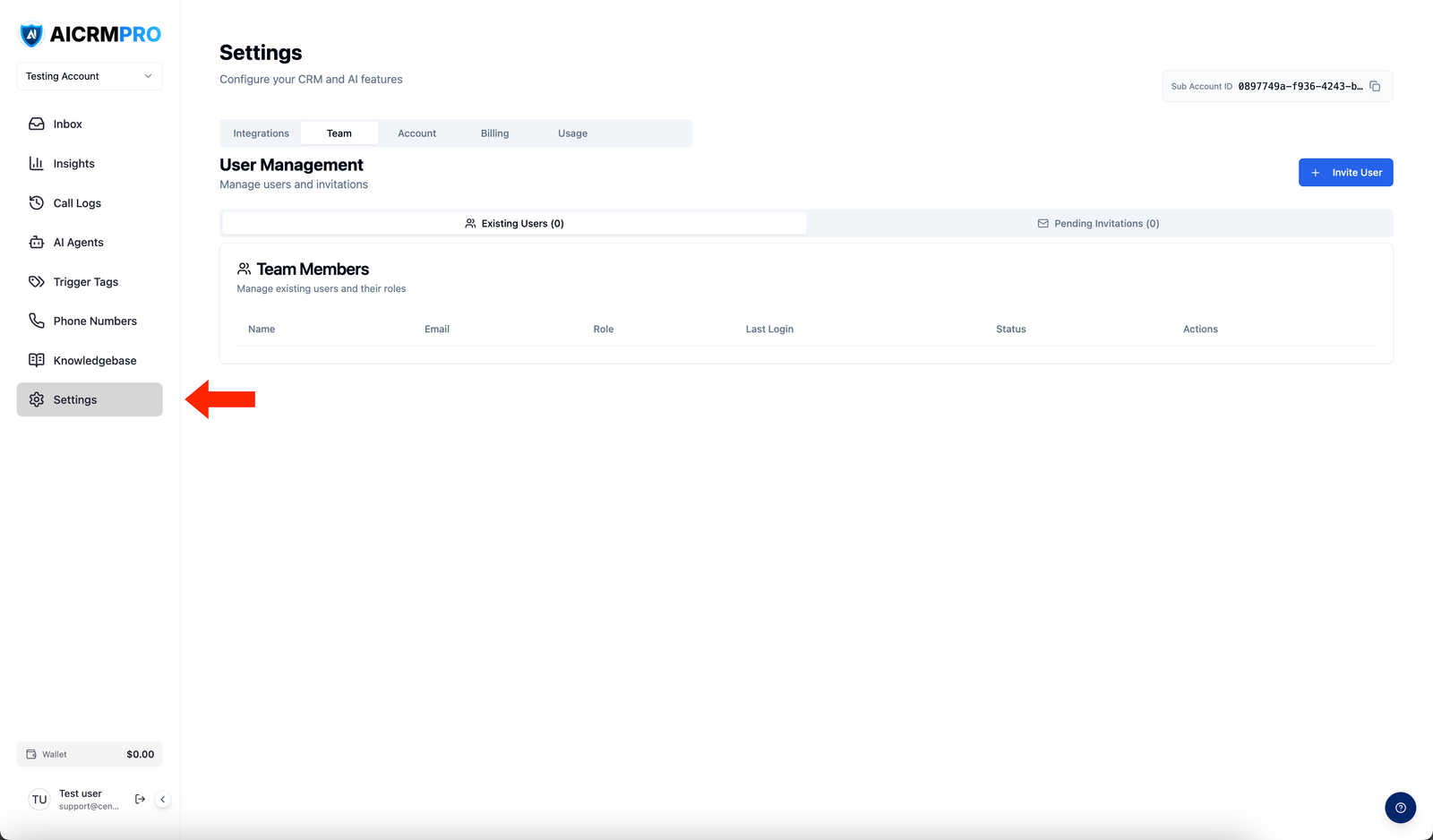
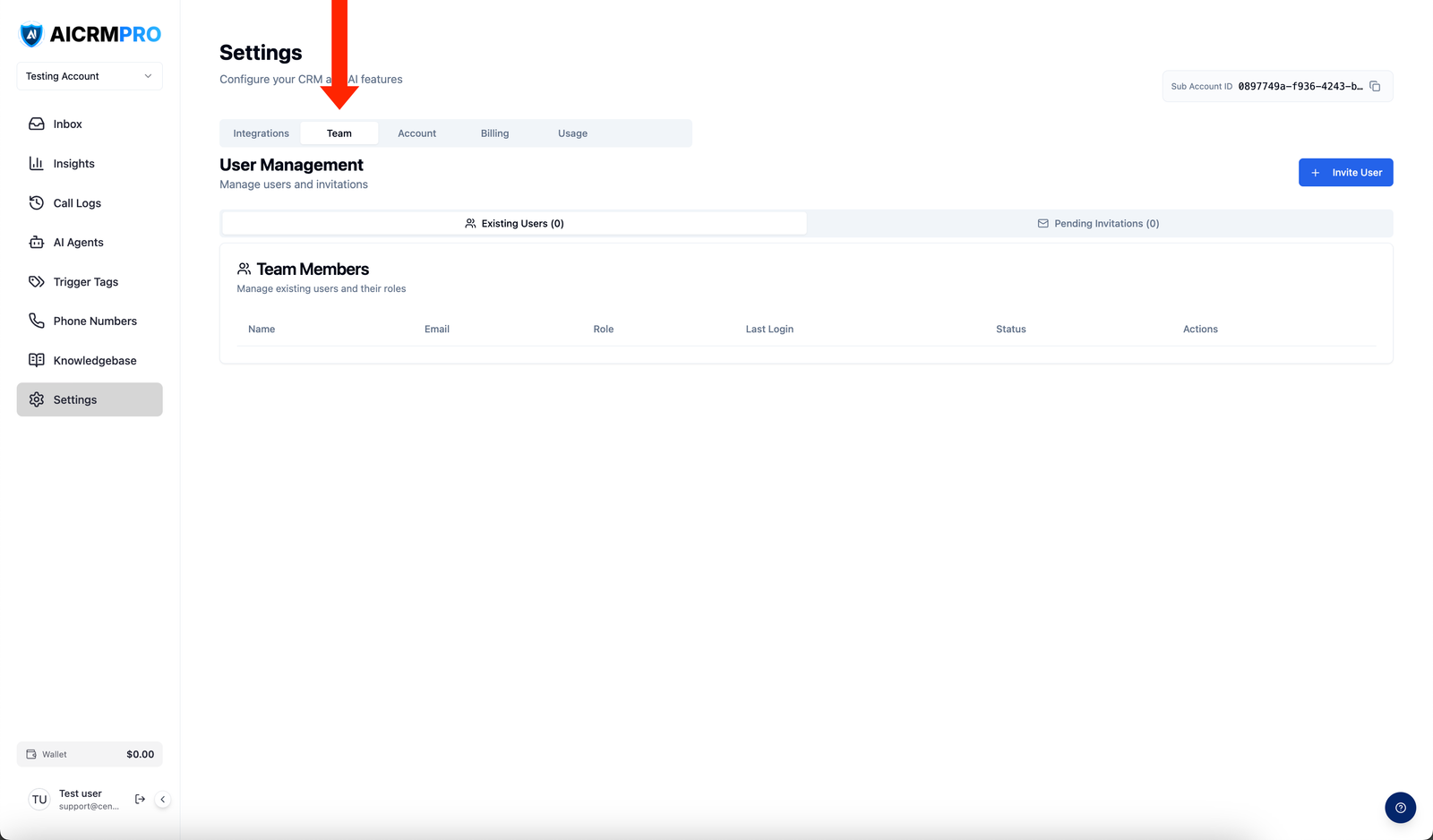
- Open Users
Go to Settings → Users and click Invite User.
- Enter their email and role
Type the team member’s email address and select the role you want to assign them.
- Send the invitation
Click Send Invite. The team member receives an email with a link to set up their account. The invitation expires after 7 days.
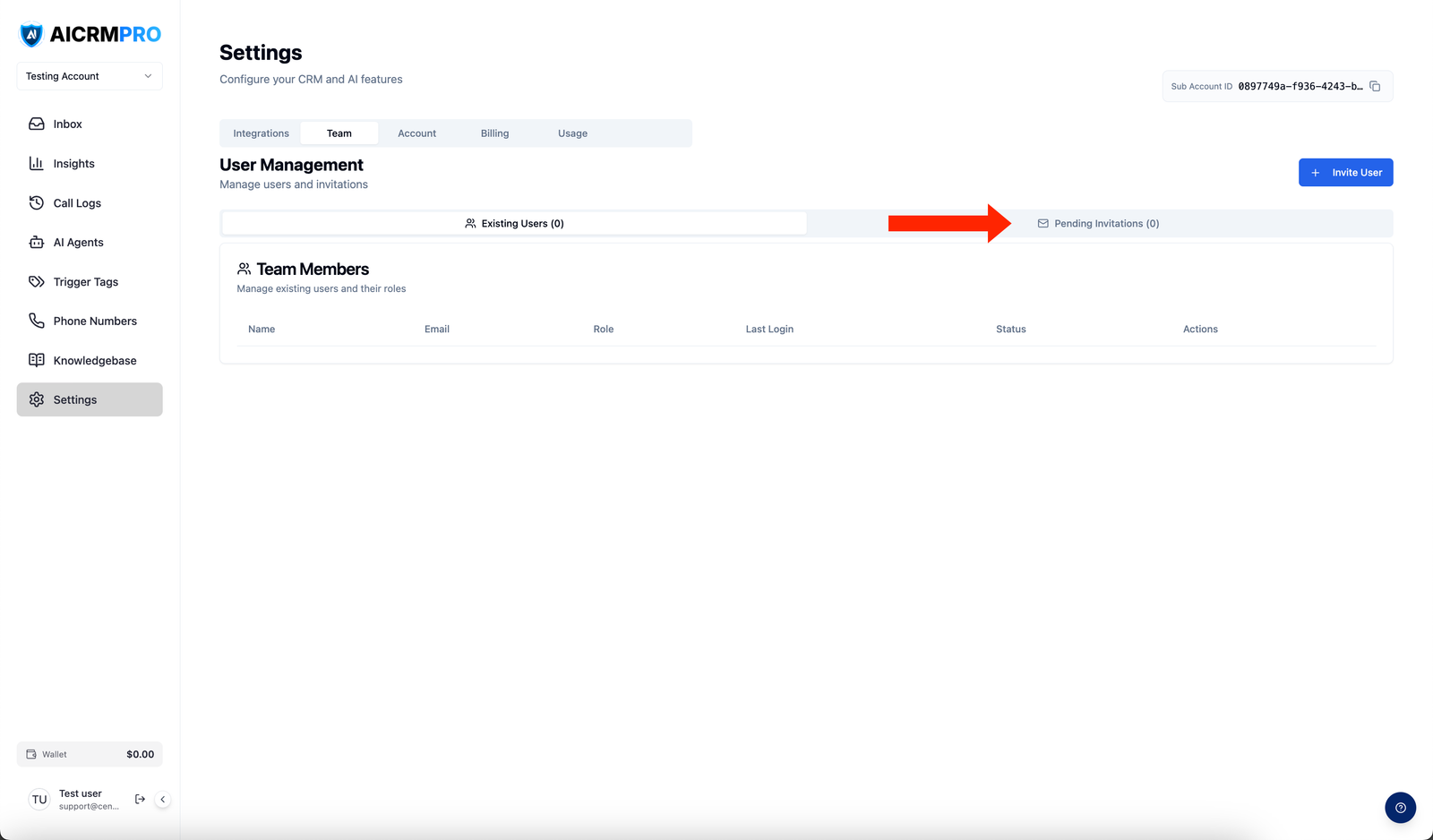
The invited user appears in your user list with a Pending status until they complete their account setup.
Managing existing users
Go to Settings → Users to see everyone who has access to your account.
To change a user’s role: Click the user’s name, select a new role from the role dropdown, and save. The change takes effect immediately.
To remove a user: Click the user’s name and click Remove Access. The user loses access to the account right away. Their data (contacts, conversations, call history) remains in your account.
For agency accounts
If you manage multiple sub-accounts, user access is scoped per sub-account. A user in one sub-account cannot see or access data from any other sub-account. You invite and manage users separately for each sub-account from within that sub-account’s settings.
Agency-level roles (such as Agency Admin) are managed separately from the agency workspace. See Sub-accounts for details on managing client workspaces.