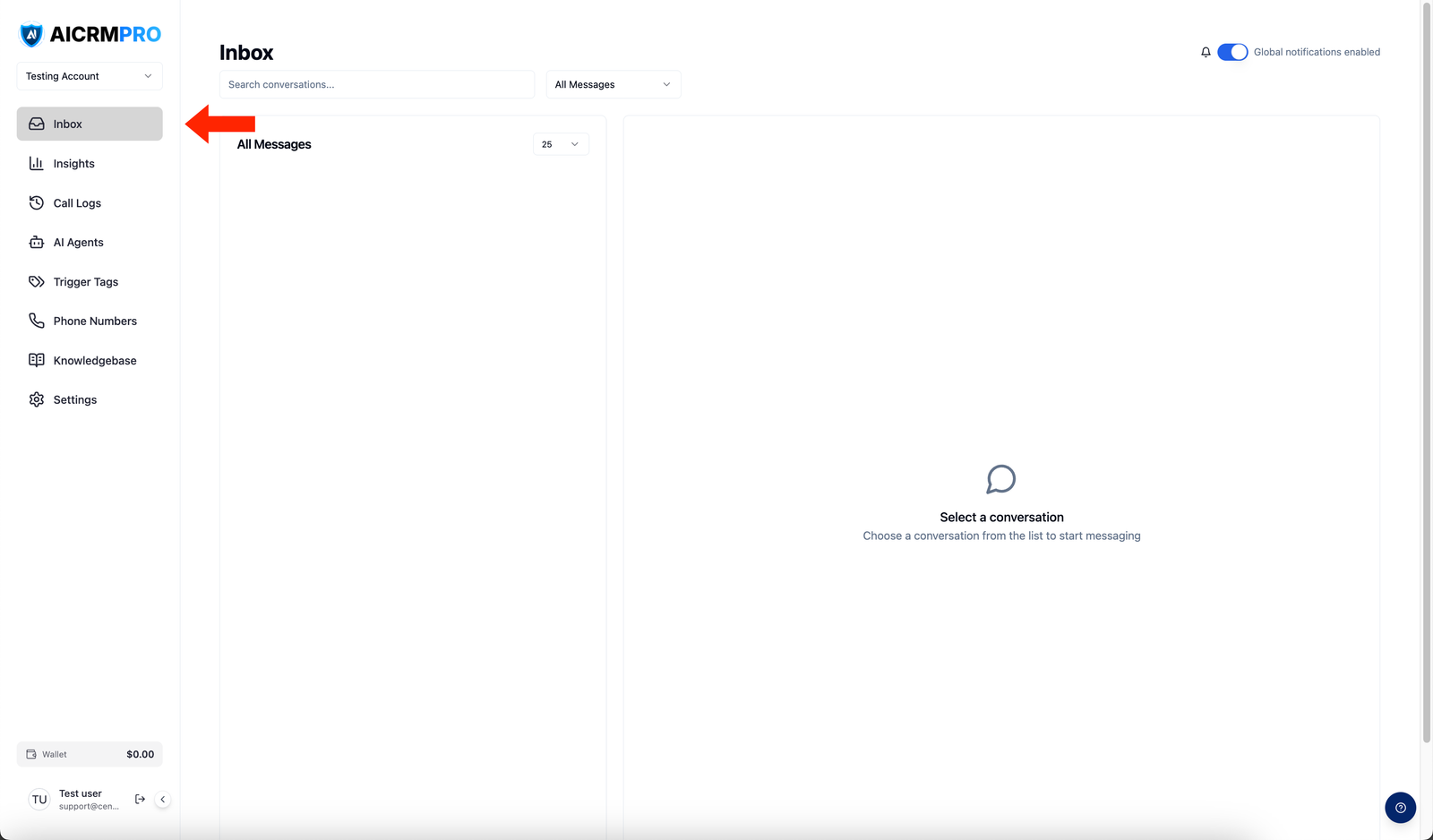
Manage all customer messages in Centerfy's unified inbox

See and reply to every SMS, email, voice, Facebook, Instagram, WhatsApp, and webchat message from one place — no tab-switching required.

The Conversations inbox is where every customer interaction lands, regardless of which channel it came through. Instead of juggling separate apps for SMS, email, and social media, you get a single timeline that shows every message in one place. Replies you send go back through the original channel automatically, so your customers never notice the difference.

What the Conversations inbox is

The inbox gives you a unified view of all customer messages across every channel Centerfy supports. Each conversation thread contains the full history with a contact — across all channels — so you always have context before you respond.

Supported channels include:

  • SMS — two-way text messaging
  • Email — send and receive email with open and click tracking
  • Voice — call recordings and automatic transcripts attached to the conversation
  • Facebook Messenger — inbound and outbound messages via the Messenger API
  • Instagram DMs — direct messages from your connected Instagram account
  • Google Business Messages — messages from your Google Business Profile
  • WhatsApp — two-way messaging via the WhatsApp Business API
  • Webchat — conversations from the embeddable chat widget on your website

How to access Conversations

Click Conversations (or Inbox) in the left sidebar. The inbox loads with your most recent conversations at the top.

Key actions in the inbox

Reply to a message

Select a conversation from the left panel to open it. Type your reply in the message box at the bottom and press Send. Your reply goes back through the same channel the contact used.

View conversation history

The right panel shows the full message history with a contact across all channels, in chronological order. Scroll up to see older messages.

Assign to a team member

Open a conversation, then click the Assign button at the top of the thread. Select a team member from the dropdown. The conversation appears in their assigned queue.

Add an internal note

Click the Note tab in the reply box (instead of Reply). Notes are visible only to your team — the contact never sees them.

Mark as read or unread

Right-click a conversation in the list, or use the three-dot menu, and select Mark as read or Mark as unread. You can also mark conversations in bulk by selecting multiple threads.

AI auto-responses

If you have an AI agent assigned to a channel or contact, the agent handles incoming replies automatically. The AI reads the message, generates a response, and sends it — without any manual action on your part.

You can step in at any time by clicking into the conversation and sending a manual reply. Your message is sent immediately, and the AI pauses so it does not override your response.

Use the filter bar at the top of the conversation list to narrow down what you see:

FilterOptions
ChannelSMS, Email, Voice, Facebook, Instagram, WhatsApp, Webchat
StatusOpen, Closed, Unread
Assigned toAny team member, or unassigned

To search, type a contact name or message content into the search bar. Results update as you type.

© 2026 Centerfy AI. All rights reserved.