Get started with Centerfy AI: your first agent in 30 minutes
Follow this guide to go from a new Centerfy account to a live AI agent that qualifies leads, books appointments, and handles calls automatically.
This guide walks you through everything you need to launch your first AI agent on Centerfy — from logging in to publishing a live voice or chat agent. Set aside about 30 minutes and you’ll have an agent responding to leads automatically by the end.
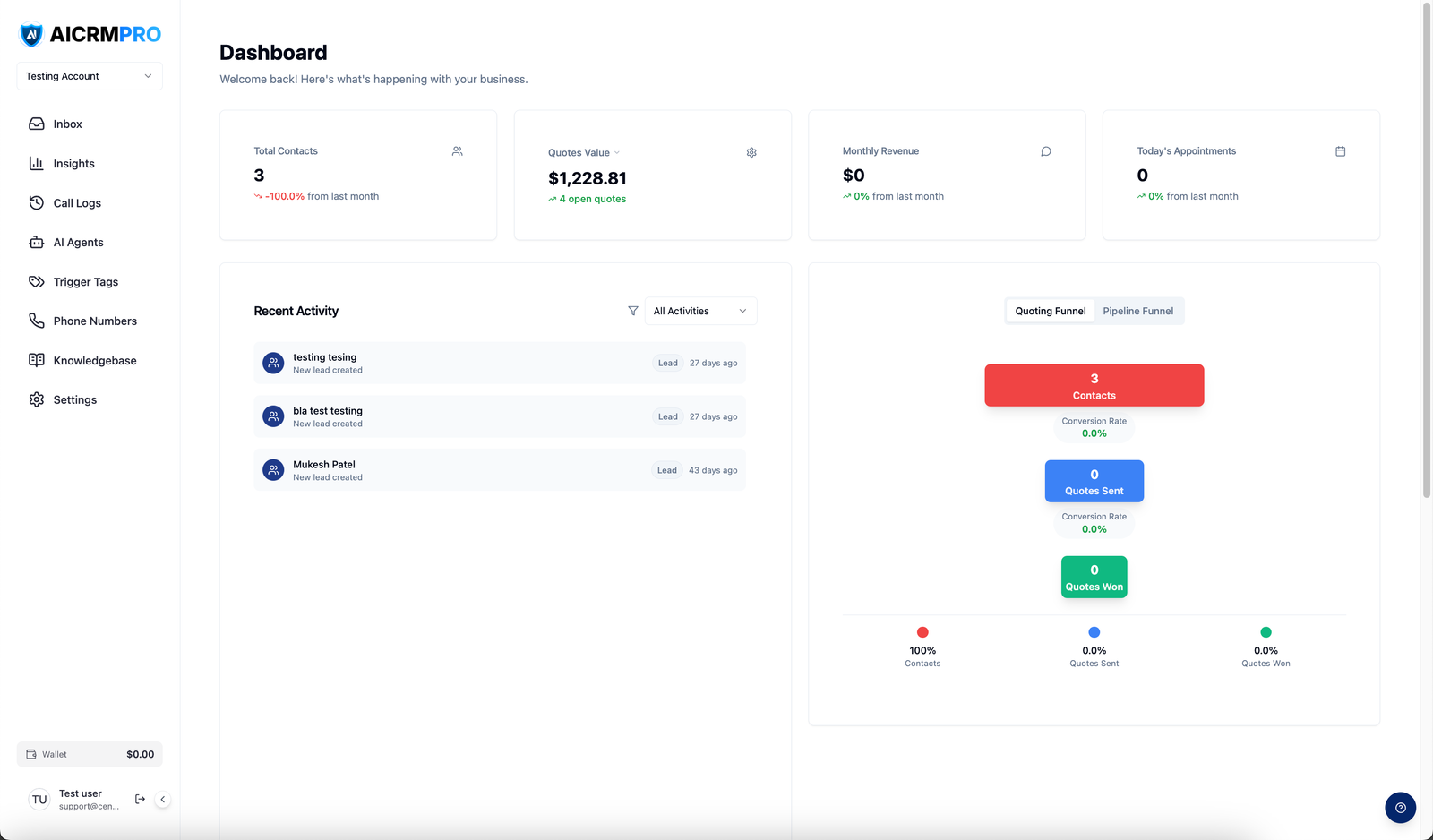
- Log in to Centerfy
Go to your Centerfy dashboard URL and sign in with the credentials from your onboarding email. If you use GoHighLevel, you can access Centerfy directly from within your GHL sub-account.
- Add a phone number
Navigate to Settings in the left sidebar, then select Phone Numbers.
Click Add Number to provision a new number or port an existing one:
- Choose US or CA from the country dropdown.
- Enter an area code or city to search available numbers.
- Select a number from the list and click Purchase.
Your number is active immediately.
- Click Port a Number.
- Enter your current number and follow the prompts to submit a porting request.
- Porting typically completes within 3–5 business days. Your existing number stays active during the process.
- Create your first AI agent
Click AI Agents in the left sidebar. If this is your first agent, you’ll see an empty state — click Create Agent to open the setup modal.
In the modal:
- Select an AI model from the dropdown. If no models appear, go to Settings → Integrations to connect an AI provider first.
- Enter a descriptive agent name (for example, “Inbound Sales Agent” or “Appointment Setter”).
- Click Create Agent.
Centerfy creates your agent and opens the configuration page automatically.
- Configure your agent
The agent configuration page is where you define how your agent behaves. Work through each section:
- System prompt — Write the instructions your agent follows during every call. Describe your business, how to greet callers, what questions to ask, and how to handle objections. The more specific you are, the more consistent your agent’s behavior will be.
- Voice — Choose a voice from the voice library. You can preview each option before selecting.
- Calendar — Link a calendar so your agent can offer and book appointment slots in real time. Select your connected calendar from the dropdown under Appointment Booking.
- Qualification questions — Add the questions your agent should ask to determine lead quality (for example, budget, timeline, location). The agent uses these to score and route leads.
- System prompt — Write the instructions your agent follows in every chat conversation. Include your business name, how to open the conversation, and how to handle common questions.
- Calendar — Link a calendar so the agent can book appointments directly from the chat widget without any back-and-forth.
- Qualification questions — Define the questions the agent asks before booking or escalating to your team.
Click Save after completing each section.
- Connect your knowledge base
Your agent can answer questions accurately when it has access to information about your business. Go to the Knowledge Base tab on the agent configuration page.
Upload documents such as:
- FAQs
- Service or product descriptions
- Pricing sheets
- Objection-handling scripts
Centerfy indexes the content and your agent references it during conversations to give accurate, on-brand answers.
See Knowledge Base for supported file types and best practices for structuring your content.
- Test your agent
Before going live, use the built-in testing tools to verify your agent behaves the way you expect.
Open the Voice Lab tab on the agent configuration page. Click Start Test Call to simulate a live call directly in your browser.
Speak naturally to your agent and listen for:
- Whether the greeting matches your system prompt
- Whether it asks the right qualification questions
- Whether it offers calendar slots and books correctly
Adjust your system prompt based on what you hear, then run another test.
Open the Chat Preview tab on the agent configuration page. Type messages as if you were a new lead.
Check that the agent:
- Opens with the correct greeting
- Handles your qualification questions in the right order
- Offers to book an appointment and confirms the slot
Edit the system prompt and refresh the preview to test changes instantly.
- Go live
Once you’re happy with your agent’s behavior, publish it.
- Go to Settings → Phone Numbers.
- Find the number you added in Step 2 and click Assign Agent.
- Select your agent from the dropdown and click Save.
Your agent now answers every call to that number automatically.
- On the agent configuration page, open the Widget tab.
- Copy the embed code snippet.
- Paste the snippet into the
<head>or<body>of your website — or add it through your CMS or tag manager.
The chat widget appears on your site immediately after you save.
What happens next
Once your agent is live, it works continuously without any manual involvement:
- Instant lead engagement — Every inbound call or chat is answered within seconds, around the clock.
- Automatic appointment booking — Qualified leads book directly into your calendar. You’ll see new appointments appear in real time.
- Call transcripts and analytics — Every conversation is recorded and transcribed. Review them in Analytics to understand lead quality, common questions, and agent performance.
Your team only needs to show up for the meetings your agent books.
Next steps
Review call transcripts, booking rates, and lead quality data for your agent.
Automate follow-up sequences, lead tagging, and notifications triggered by agent activity.
Add your team to the dashboard and assign roles to control access.
Upload FAQs and business content so your agent gives accurate, on-brand answers.