Deploy an AI chat agent on your website with Centerfy
Add a Centerfy chat widget to your website to engage visitors, qualify leads, book appointments, and send follow-up SMS automatically.
A chat agent appears as a widget on your website and starts conversations with visitors automatically. It introduces itself, answers questions using your knowledge base, collects lead information, qualifies prospects based on your criteria, and can book appointments directly in the chat — all without any manual effort from your team. Once you embed the widget script, the agent runs continuously on every page where it’s installed.
What a chat agent does
- Engages website visitors the moment they land on your page with a configurable welcome message
- Answers questions accurately using your linked knowledge base
- Qualifies leads by walking visitors through your custom qualification questions
- Books appointments by offering available calendar slots inside the conversation
- Tags contacts and adds CRM notes automatically based on the conversation
- Sends follow-up SMS to continue the conversation after the visitor leaves the page
Create a chat agent
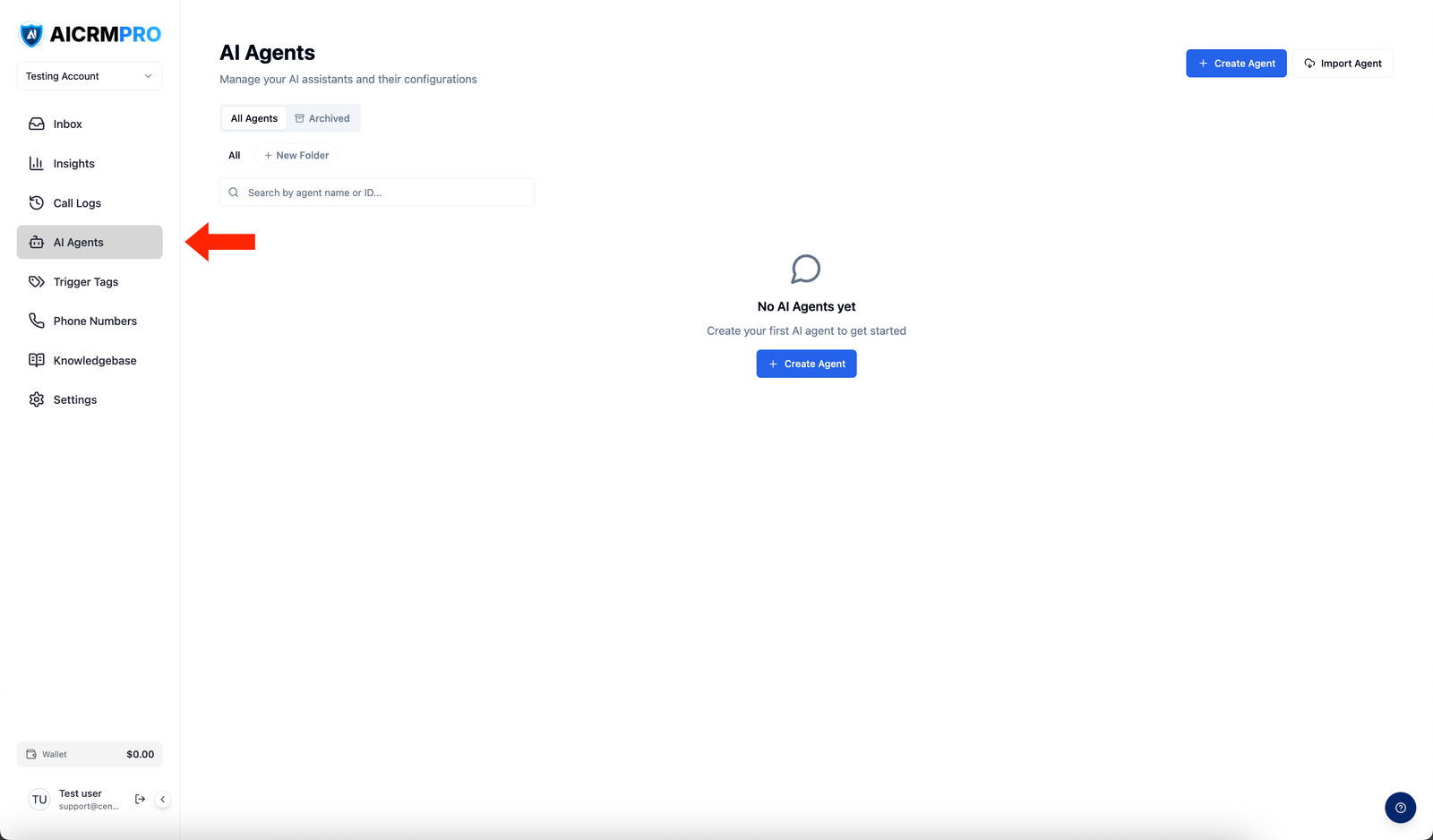
- Open AI Agents
Navigate to AI Agents in the left sidebar of your Centerfy dashboard.
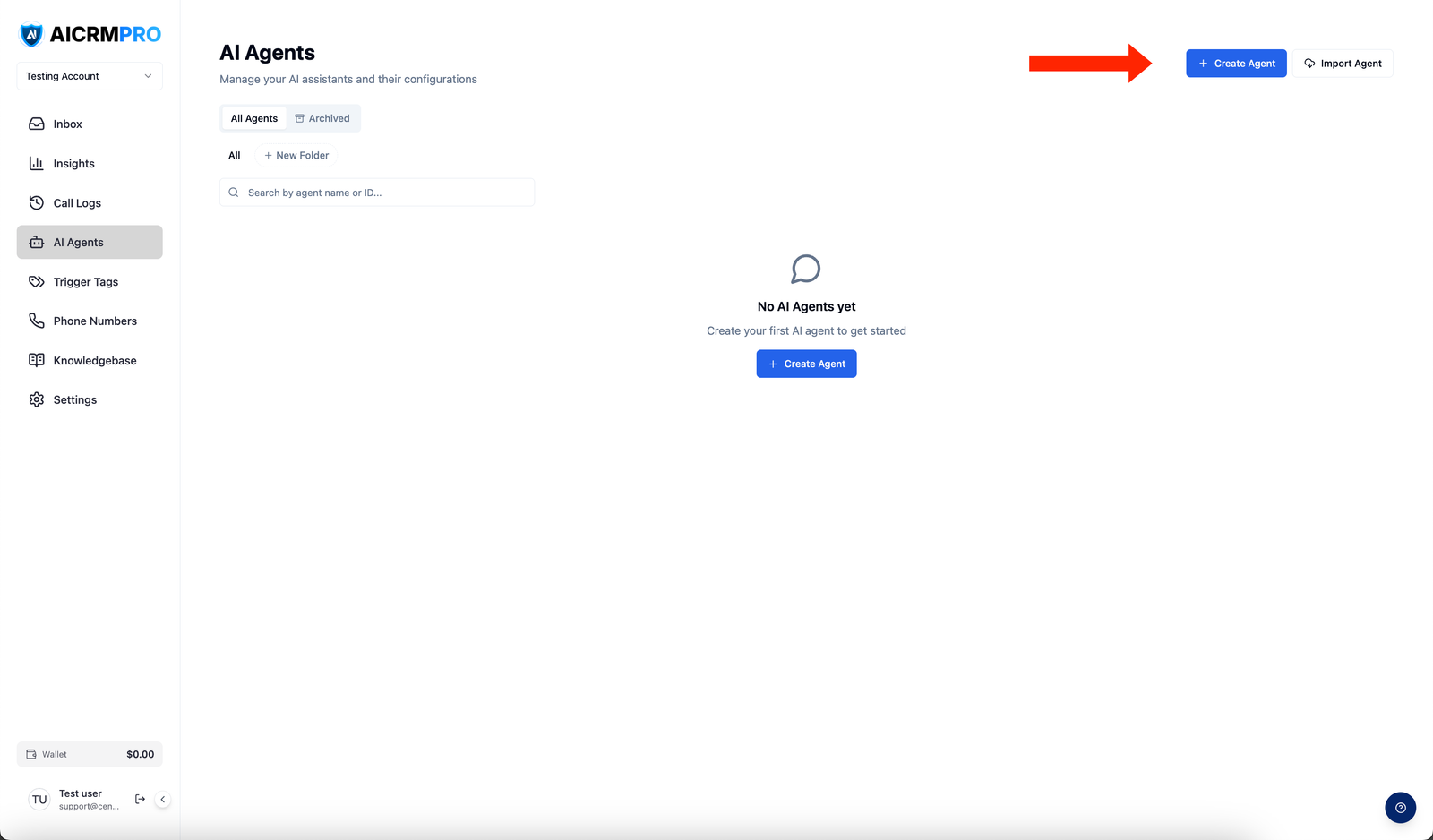
- Create a new agent
Click Create Agent and select Chat as the agent type.
- Configure the widget
Use the Agent Builder tabs to set up the widget appearance, system prompt, tools, and knowledge base. See the configuration sections below for details.
- Copy the embed script
Once you’ve saved the agent, go to the General tab and copy the embed script shown under Widget Embed Code.
- Add the script to your website
Paste the script tag into your website’s HTML just before the closing
</body>tag on every page where you want the widget to appear. - Test in the dashboard preview
Use the live preview panel in the Agent Builder to interact with the widget before it goes live on your site.
Widget configuration
Name and avatar
Set the display name that appears in the chat widget header (for example, “Aria from Acme” or “Sales Assistant”). You can also upload a custom avatar image to match your brand. These settings are visible to every visitor who opens the chat.
Welcome message
The welcome message is the first thing visitors see when the widget loads or when they open the chat. Write a short, inviting message that tells visitors what the agent can help with — for example: “Hi! I’m here to help you find the right plan and book a free consultation. How can I help?”
System prompt
The system prompt defines the agent’s behavior, personality, and goals. Write clear instructions covering:
- The agent’s role and tone
- What it should help visitors accomplish
- Qualification questions to ask
- What to do if the visitor is ready to book
Use the AI Prompt Generator on the Prompt tab to draft a starting prompt based on a description of your business.
Qualification questions
Define the questions the agent asks to qualify a lead — for example, company size, budget range, timeline, or service need. You can configure these as part of the system prompt or as structured steps the agent follows during the conversation. Qualified leads are automatically tagged in your CRM.
Calendar booking
Enable the Book Appointment tool in the Tools tab and link your calendar. When a visitor is ready to book, the agent presents available slots and confirms the appointment — syncing directly to your calendar and sending a confirmation.
Embed the widget on your site
After saving your chat agent, copy the embed script from the General tab. The script tag includes your agent’s unique ID and loads the widget automatically.
Paste the copied snippet into your site’s HTML before the closing </body> tag. The widget will appear automatically on every page where the script is present.
Use a plugin such as Insert Headers and Footers to add the script to your site’s footer without editing theme files directly.
Go to Project Settings > Custom Code and paste the script in the Footer Code field. Publish your site for the changes to take effect.
Open your HTML file and paste the script directly before the </body> tag, then save and deploy.
Tools available to chat agents
You enable tools in the Tools tab of the Agent Builder. Each tool gives the agent the ability to take a specific action during a conversation.
Book Appointment
Checks your calendar for available slots and books a meeting on behalf of the visitor. Requires a connected calendar and the Book Appointment tool to be enabled.
Add Contact Tag
Applies a tag to the contact record in your CRM based on what the visitor says or how they qualify. Useful for segmenting leads automatically.
Send Follow-up SMS
Sends an SMS message to the visitor’s phone number after the chat — for example, a booking confirmation or a link to a resource they asked about.
Test the widget in the dashboard
Before embedding the widget on your site, test it using the preview panel inside the Agent Builder:
- Open the agent and look for the Preview pane on the right side of the builder.
- Type messages as if you were a website visitor.
- Verify the agent responds correctly, asks the right questions, and offers booking when appropriate.
- Adjust your system prompt or tool settings and re-test until the agent behaves as expected.