

Organize, segment, and manage your leads and customers
Add, tag, segment, and manage contacts — every lead and customer in one searchable record with full interaction history.
Contacts are the foundation of Centerfy. Every lead or customer has a contact record storing their information, conversation history, tags, notes, and pipeline stage.
Contacts page tabs
The Contacts page has four tabs:
- Contacts — your full contact list
- Companies — organization records with associated contacts
- Smart Lists — saved filter sets for quick segmentation
- Campaigns — outbound SMS campaigns
Contact records
Each contact record holds:
- Name, phone, and email
- Tags for segmentation
- Internal notes
- Full conversation history across all channels
- Pipeline stage
- Associated company
- Custom fields
Adding contacts
Go to Contacts in the sidebar, click Add Contact, fill in the fields, and click Save.
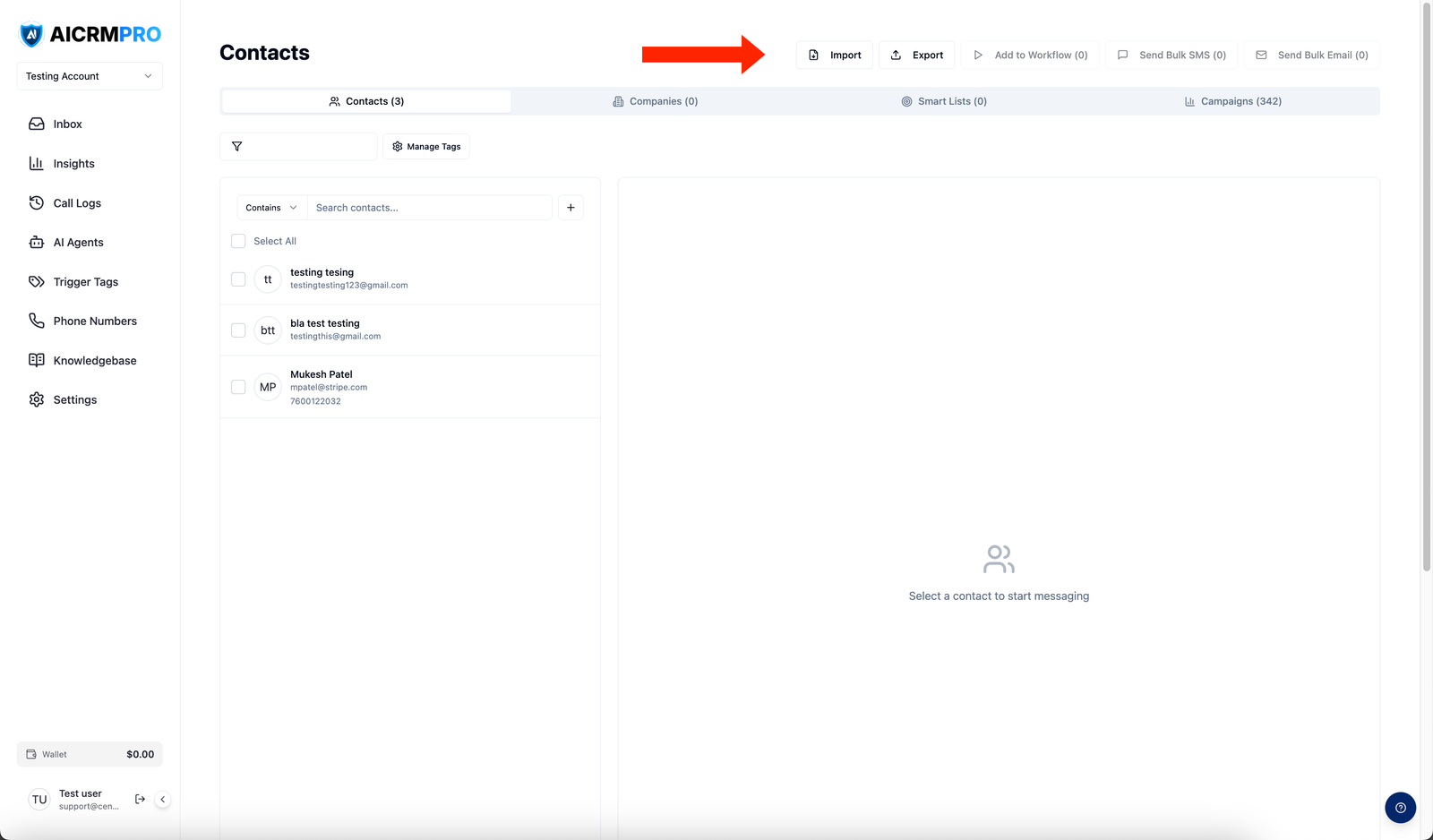
Click Import in the Contacts view, upload a CSV, map columns to contact fields, and confirm. Duplicates are flagged before importing.
If connected to GoHighLevel, contacts sync automatically in both directions.
Contacts are created automatically when someone submits a connected form.
Tags
Tags are labels you attach to contacts for grouping and automation (e.g., hot-lead, no-show, VIP).
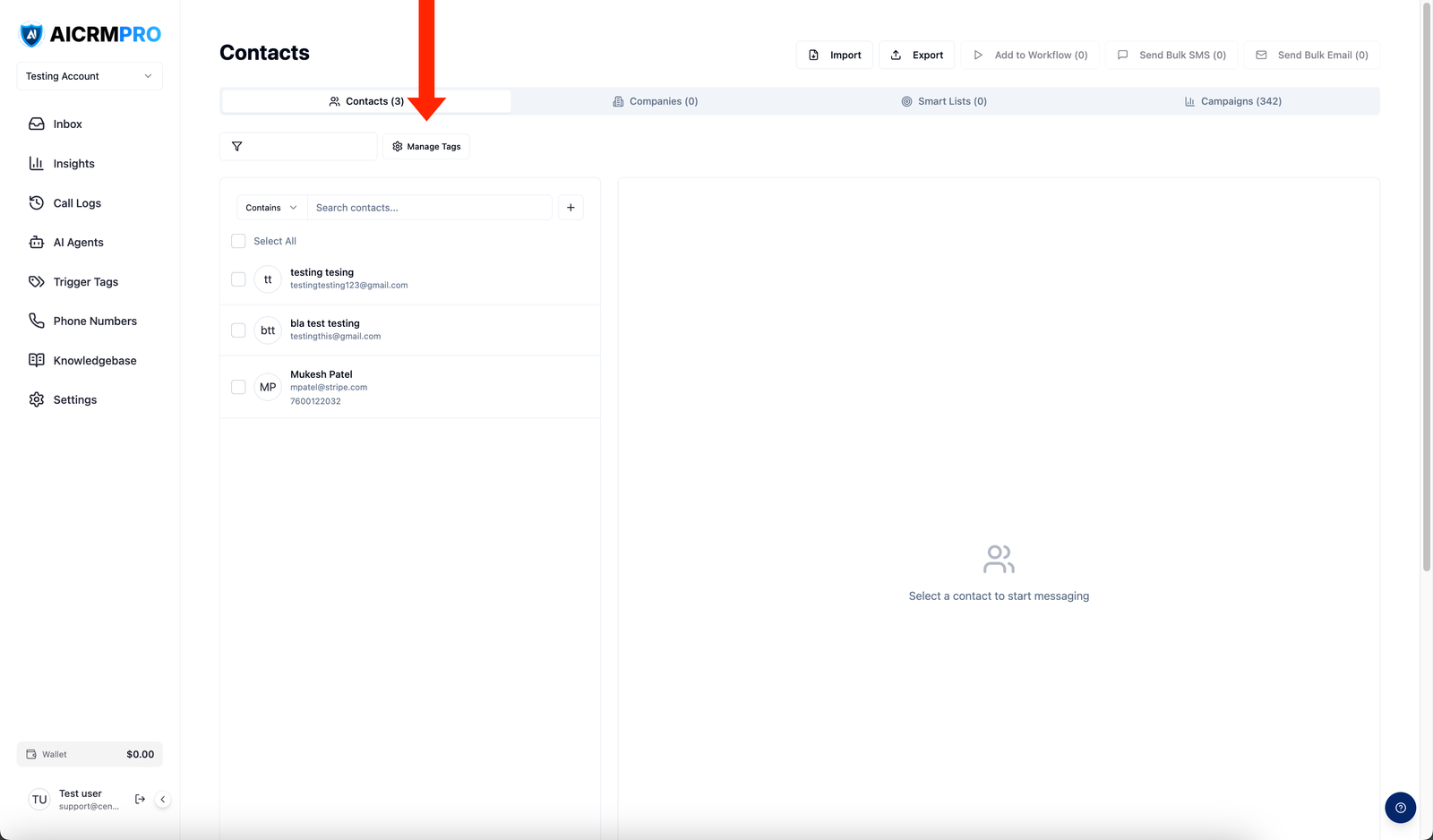
To manage tags across your account, click Manage Tags in the Contacts view. To add a tag to a contact, open their record and type in the Tags field.
Tags can trigger workflows automatically — any workflow with a “Tag Added” trigger fires when a matching tag is applied.
Bulk actions
Select multiple contacts using checkboxes, then:
- Send bulk SMS or email
- Add or remove tags
- Enroll in a workflow
- Export as CSV
Smart lists
Use the filter panel to segment contacts by tag, date added, pipeline stage, or conversation status. Save a filter set as a smart list to return to it without re-applying filters.
Companies
Group contacts under a company record. From a contact, click Company and select or create one.