Set up and configure AI voice agents for phone calls
Configure Centerfy voice agents to answer inbound calls 24/7, make outbound calls, qualify leads, book appointments, and transfer to your team when needed.
Voice agents are AI-powered phone assistants that handle calls on your behalf. An inbound voice agent picks up every call the moment it arrives — no hold time, no missed opportunities — while an outbound voice agent can dial contacts automatically or on demand. Both modes qualify leads, book appointments, and sync conversation data to your CRM in real time.
What a voice agent does
- Answers every inbound call, 24/7 — including nights, weekends, and holidays
- Makes outbound calls via auto-dialer or manually triggered from a workflow
- Qualifies leads by asking your custom qualification questions naturally during the conversation
- Books appointments directly in the call by checking calendar availability in real time
- Transfers to a human when the caller needs escalation, with full context passed along
- Transcribes every call automatically so you have a complete record in your dashboard
Create a voice agent
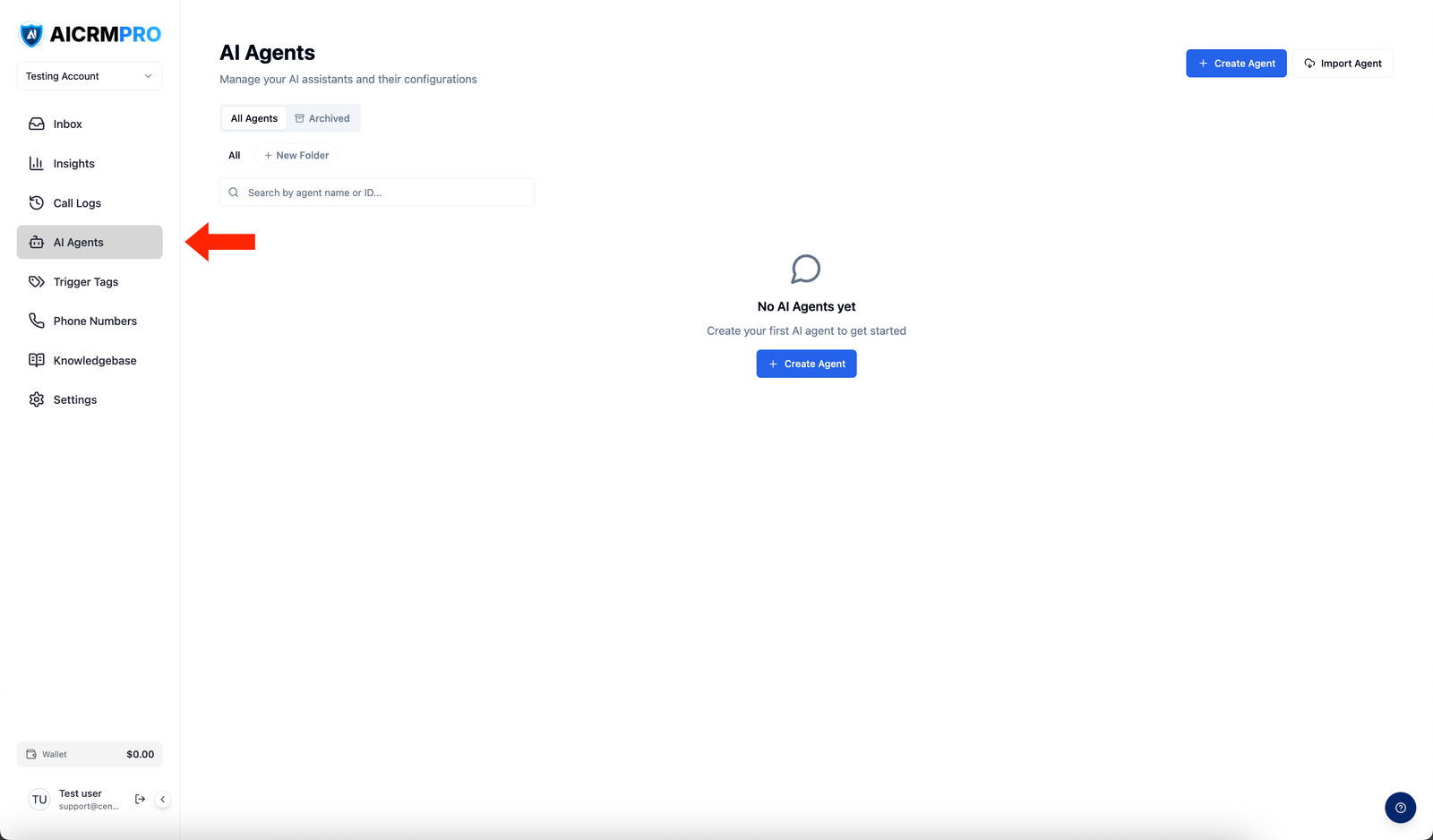
- Open AI Agents
In your Centerfy dashboard, navigate to AI Agents in the left sidebar.
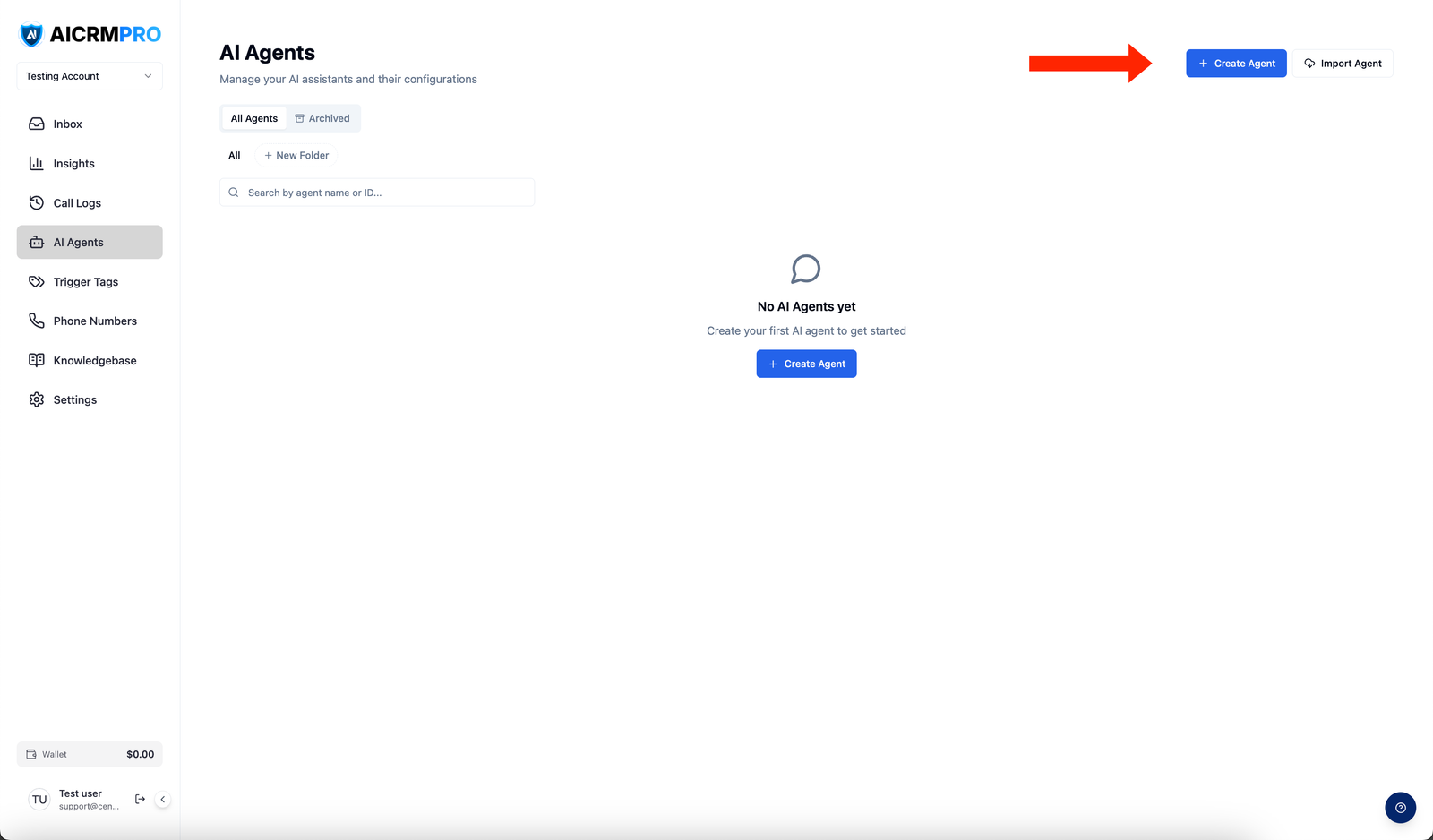
- Create a new agent
Click Create Agent. When prompted to choose an agent type, select Voice.
- Name your agent
Give the agent a clear internal name (for example, “Inbound Sales Agent” or “After-Hours Receptionist”). This name is visible only to your team.
- Configure the agent
Use the tabs in the Agent Builder to set up the system prompt, voice, tools, and knowledge base. See the configuration sections below for details.
- Assign a phone number
In the General tab, select a phone number from your available numbers to assign to the agent. Inbound calls to that number will route to this agent.
- Test with Voice Lab
Before going live, click Voice Lab to simulate a call and verify the agent behaves as expected.
- Save and publish
Click Save and Publish. The agent goes live immediately on the assigned number.
Configuration options
System Prompt
The system prompt is the core instruction set that defines your agent’s personality, goals, and boundaries. Write it as a set of clear directions — for example:
- What role the agent plays (“You are a friendly receptionist for Acme Plumbing…”)
- What the agent should do (“Greet callers, ask for their name and the nature of the call, qualify the lead…”)
- What the agent should not do (“Never discuss pricing until a lead is qualified…”)
Use the built-in AI Prompt Generator on the Prompt tab to generate a first draft based on a description of your business. You can then refine it to match your exact needs.
Voice selection
Choose the AI voice your agent speaks with. Centerfy provides a library of natural-sounding voices across different tones and styles. You can:
- Browse available voices in the Voice tab
- Click the preview button next to any voice to hear a sample before selecting it
- Filter by gender to narrow the list
Your selected voice applies to all calls this agent handles.
Language settings
Set the primary language the agent uses for calls. The language setting controls both the agent’s speech output and its speech recognition. Select the language that matches your callers.
Inbound vs. outbound mode
Inbound mode (default): The agent answers calls placed to its assigned phone number.
Outbound mode: Enable Make Outbound Calls in the General tab. You can then trigger outbound calls in two ways:
- Auto-dialer: The agent calls contacts automatically based on workflow triggers (for example, when a new lead form is submitted).
- Manual outbound: Initiate a call to a specific contact from the contact record or workflow.
Transfer and escalation
Configure a human transfer number so the agent can hand off calls when a caller requests a human or the conversation requires it. In the Tools tab, enable the Transfer to Human tool and enter the destination phone number. The agent announces the transfer and connects the caller seamlessly.
Call recording and advanced settings
Under the Advanced tab you can configure:
- Call recording: on by default; disable if not needed for your use case
- Voicemail detection: choose an action when the agent reaches voicemail (leave a message or hang up)
- Max call time: set a limit on call duration
- Silence timeout: how long the agent waits during silence before prompting the caller
- Post-call actions: automatically apply tags, add CRM notes, or trigger a workflow after each call
Assign a phone number
Each voice agent needs a phone number to receive or make calls. Go to the General tab of the agent, find the Phone Number field, and select one of your provisioned numbers. If you need to add a new number first, go to Settings > Phone Numbers.
Enable outbound calling
To allow the agent to initiate calls:
- Open the agent in the Agent Builder.
- In the General tab, toggle on Make Outbound Calls.
- Configure your outbound caller ID (the number that will appear to recipients).
- Use a Workflow to trigger the agent to call contacts based on your criteria, or initiate calls manually from a contact record.
Test with Voice Lab
Before deploying your agent, use Voice Lab to run a simulated call directly in the dashboard:
- Open the agent in the Agent Builder.
- Click the Voice Lab button at the top of the page.
- Speak with the agent as if you were a caller.
- Review the transcript and the agent’s responses.
- Return to the configuration and adjust the prompt or tools as needed, then test again.