

Build a knowledge base to train your Centerfy AI agent
Upload documents, crawl URLs, and add FAQ entries to build a knowledge base that powers accurate, up-to-date responses from your AI agents.
A knowledge base gives your AI agent accurate, specific information about your business — pricing, services, policies, FAQs, and more — so it can answer questions correctly instead of guessing. Without a knowledge base, an agent can only rely on its system prompt and general knowledge. With one, it retrieves the most relevant information from your content and uses it to respond confidently and consistently.
Creating a knowledge base is the single most effective thing you can do to improve your agent’s answer quality. This page covers how to create a knowledge base, add content to it, link it to an agent, and keep it current.
Create a knowledge base
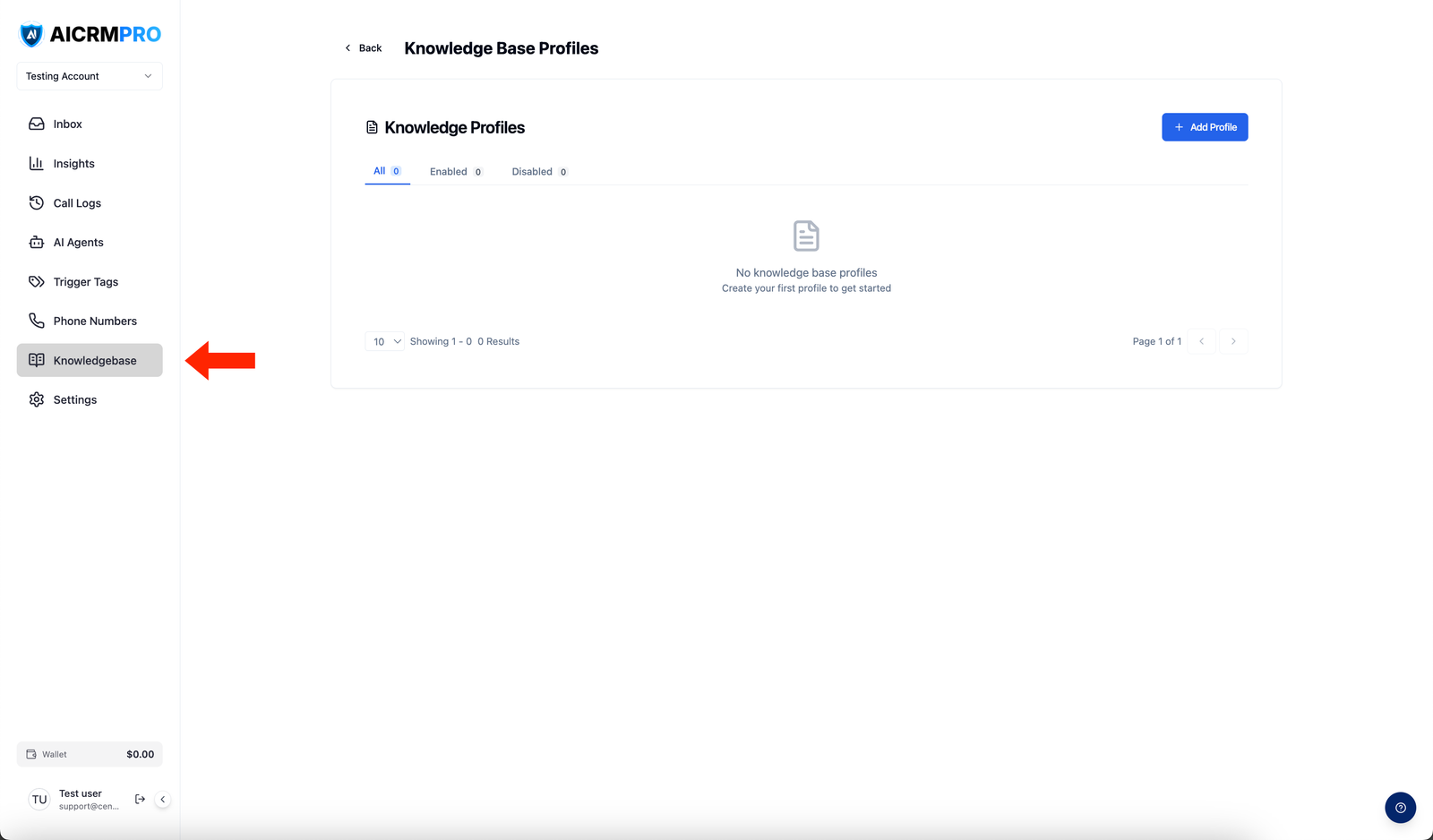
- Go to Knowledgebase in the left sidebar of your Centerfy dashboard.
- Click Create New.
- Enter a name and optional description (for example, “Product & Pricing FAQ” or “Onboarding Docs”).
- Click Create to open the knowledge base editor.
Add content to your knowledge base
You can populate a knowledge base in three ways. Use any combination of them within the same knowledge base.
1. Upload documents
Drag and drop files directly into the knowledge base editor, or click Upload to browse your computer. Centerfy extracts and indexes the content automatically.
Supported file types: PDF, DOCX, XLSX, PPTX, plain text, and Markdown.
The parser handles structured content including tables, lists, and headers. After uploading, you’ll see a preview of the extracted content so you can verify it was parsed correctly.
2. Add URLs
Paste any public URL and Centerfy crawls the page and indexes its content. You can also crawl an entire website:
- Single page: paste the URL and click Add URL
- Full site crawl: Centerfy automatically discovers additional pages via the site’s sitemap and crawls them recursively, deduplicating overlapping content
URL sources can be set to auto-recrawl on a schedule (daily or weekly) so your agent always has the latest version of your web content.
3. Write text entries directly
Use the built-in text editor to add FAQ entries, plain text passages, or any content you want to write directly — without uploading a file or pointing to a URL. This is useful for internal policies, scripts, or information that isn’t published anywhere publicly.
Link a knowledge base to an agent
Once your knowledge base has content, connect it to an agent:
- Open the agent in the Agent Builder.
- Select your knowledge base from the dropdown within the agent configuration.
- Click Save.
The agent will now retrieve relevant passages from the knowledge base when it needs to answer a question. You can link one knowledge base per agent.
How retrieval works
When a caller or visitor asks a question, the agent uses semantic search — not keyword matching — to find the most relevant passage in your knowledge base. The search uses vector embeddings to understand the meaning of the question, so it finds the right content even when the wording doesn’t exactly match your documents.
For example, if your knowledge base contains “We offer free consultations on Tuesdays and Thursdays,” a caller asking “Can I get a free call with someone?” will still get the right answer.
The agent synthesizes the retrieved passage with the conversation context and generates a natural-language response. It can pull from multiple documents in a single answer when the information is spread across sources.
Keep your knowledge fresh
Your knowledge base is only as accurate as the content in it. Here’s how to keep it current:
- Documents: re-upload the file whenever the source document changes. Old and new versions are versioned, so you can see what changed.
- URL sources: enable auto-recrawl so Centerfy fetches the latest page content on a schedule. You can also trigger a manual re-crawl at any time from the source settings.
- Text entries: edit them directly in the knowledge base editor — changes take effect immediately.
Frequently asked questions
How many knowledge bases can I create?
You can create multiple knowledge bases and assign a different one to each agent. There is no limit on the number of knowledge bases in your account.
Can I disable a source without deleting it?
Yes. Each document or URL source has an enable/disable toggle. Disabling a source removes it from the agent’s retrieval pool without deleting the content, so you can re-enable it later.
Is my content secure?
Yes. All knowledge base content is encrypted at rest and in transit. Access is controlled by your account’s role-based permissions.
How does the agent cite sources?
When the agent retrieves content from your knowledge base to answer a question, it can reference the document or page it pulled the answer from. Source citation is configurable in the agent’s settings.