

Control when your AI responds with Active Tags
Use Active Tags to control exactly when your AI agent responds to messages and when it stays silent, logging conversations without engaging.
Active Tags determine whether your AI agent responds to incoming messages or simply logs them in the background. When no tag is present on a contact, the AI observes and records the conversation but does not send any replies. When the correct tag is applied, the AI activates and begins auto-responding immediately.
How Active Tags work
- No tag on contact — AI logs the conversation but does not reply
- Tag present on contact — AI auto-responds to every incoming message
- Tag removed or “AI OFF” checked — AI stops responding immediately
- Sleep Mode enabled — AI pauses during human agent replies, resumes when the human stops
This gives you full control over which contacts get AI-powered responses and which are handled manually by your team.
Set up Active Tags
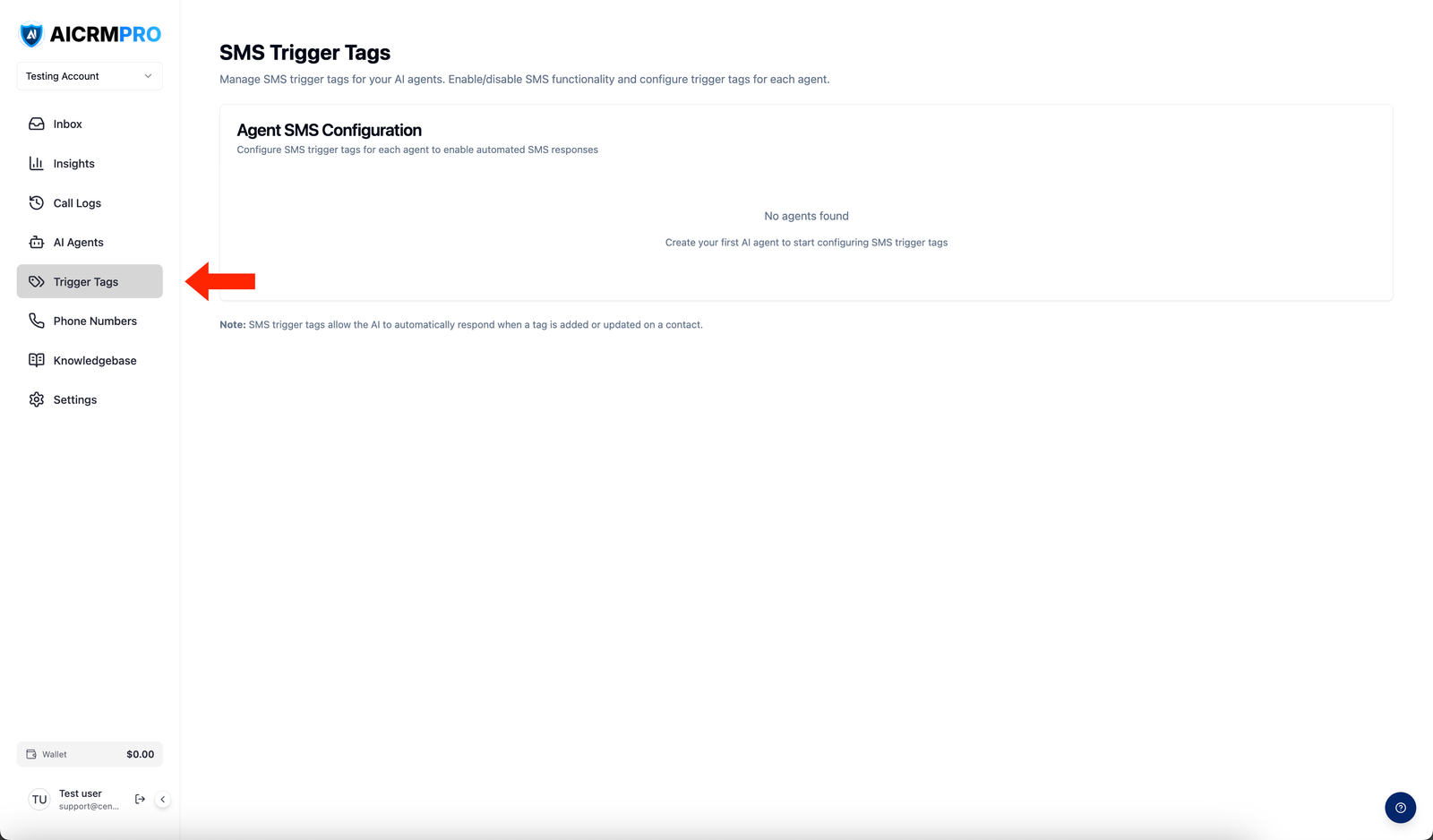
- Open Active Tags
In the AI Agent Builder, look for the Active Tags section in the left sidebar. This is where you create and manage the tags that control AI behavior.
- Create a new tag
Click Add Tag and enter a descriptive name for the tag. Use clear naming conventions that indicate the channel and purpose — for example,
smschat_aifor SMS conversations orlivechat_aifor live chat. - Apply tags to contacts
Tags can be applied to contacts in several ways:
- Workflows — add a “Add Tag” action step to apply the tag automatically when a contact enters a workflow
- Form triggers — apply the tag when a contact submits a specific form
- Manual assignment — add the tag directly to a contact record in the CRM
- Verify AI activation
Once the tag is applied, send a test message to the contact. The AI should respond automatically based on your agent’s prompt and configuration.
Disable AI responses
There are three ways to stop the AI from responding to a specific contact:
- Remove the Active Tag — go to the contact record and remove the tag. The AI immediately stops responding.
- Check “AI OFF” — in the conversation view, check the AI OFF toggle. This overrides the tag and pauses AI for that contact.
- Sleep Mode — when a human agent starts replying in the conversation, Sleep Mode automatically pauses the AI. Once the human stops replying and the contact sends a new message, the AI resumes.
Best practices
- One tag per channel — create separate tags for SMS, live chat, and other channels so you can enable or disable AI per channel independently
- Use workflows for automation — instead of manually tagging contacts, set up workflows that apply tags based on triggers like form submissions, pipeline stage changes, or appointment bookings
- Audit regularly — review which contacts have active tags to ensure the AI is only responding where you want it to
Can I have multiple Active Tags on one contact?
Yes. A contact can have multiple tags, and the AI will respond as long as at least one matching Active Tag is present. Removing all tags disables AI responses.
What happens if I apply a tag mid-conversation?
The AI picks up immediately. It reads the conversation history and responds to the most recent unanswered message from the contact.
Does Sleep Mode remove the tag?
No. Sleep Mode is a temporary pause. The tag stays on the contact, and the AI resumes automatically once the human agent stops replying and a new inbound message arrives.
Can I use Active Tags with voice agents?
Active Tags are designed for chat-based channels (SMS, live chat, web widget). Voice agents are triggered by inbound calls to assigned phone numbers, not by tags.