

Automate your sales process with the Workflow Builder
Build drag-and-drop automation workflows using triggers, conditions, and AI actions — no code required.
Workflows automate repetitive sales tasks. A workflow watches for an event — a new call, a form submission, a tag being added — and executes actions automatically. Once published, it runs 24/7.
Accessing workflows
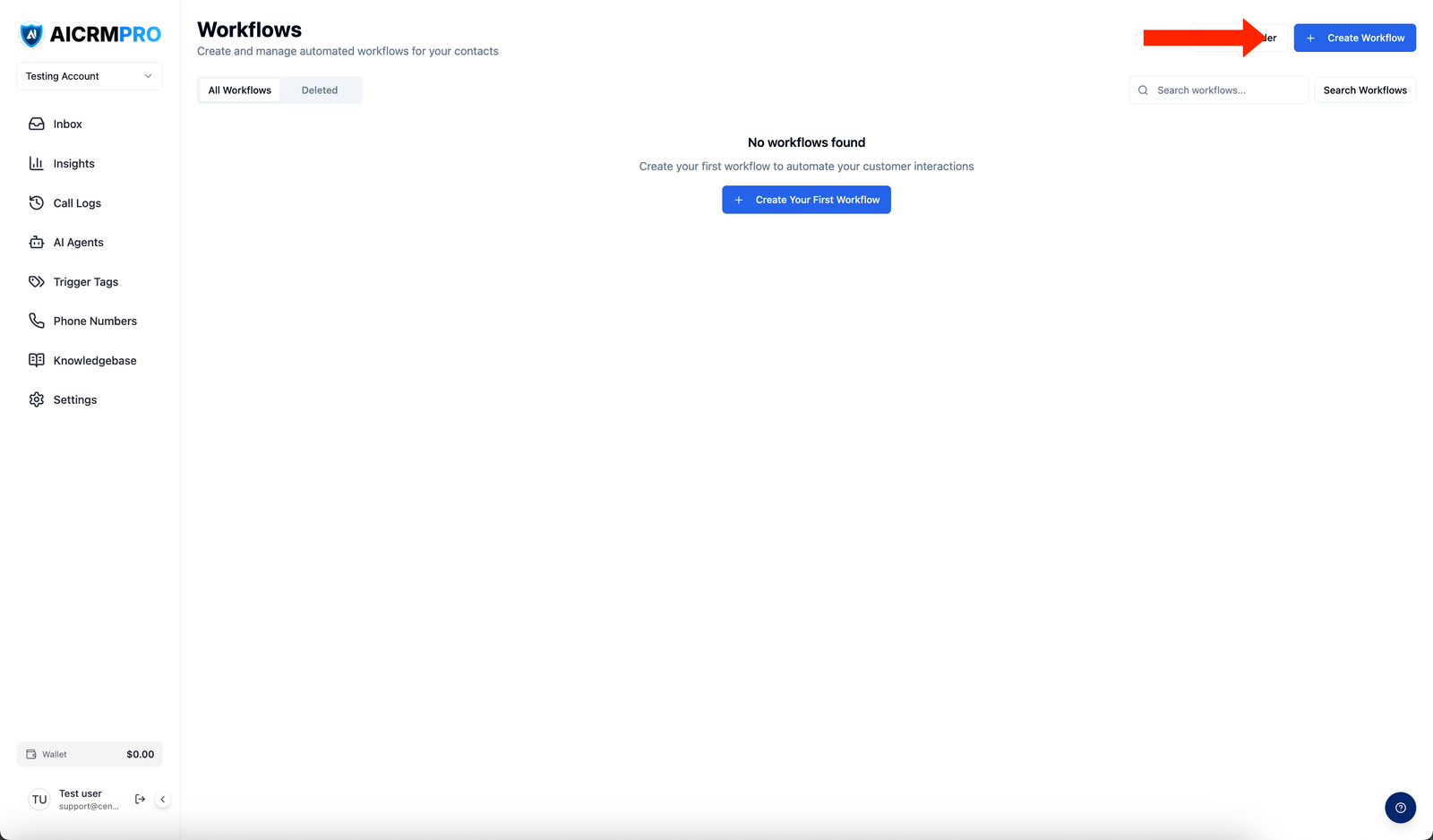
Click Workflows in the sidebar. Your existing workflows are listed with their status (active or paused). Click Create Workflow to build a new one.
Workflow anatomy
Every workflow has three building blocks:
- Trigger — the event that starts the workflow
- Conditions (if/else) — optional filters that control whether the workflow continues
- Actions — steps that execute in sequence
Available triggers
| Trigger | When it fires |
|---|---|
| Contact created | A new contact record is added |
| Tag added | A specific tag is applied to a contact |
| Appointment booked | An appointment is scheduled |
| Appointment cancelled | An appointment is cancelled |
| Form submitted | A contact fills out a connected form |
| Call completed | A call ends (inbound or outbound) |
| Campaign reply received | A contact replies to an SMS campaign |
| Inbound message received | Any new inbound message arrives |
Available actions
| Action | What it does |
|---|---|
| Send SMS | Send a text message to the contact |
| Send email | Send an email to the contact |
| Add / remove tag | Apply or remove a tag |
| Add note | Append a note to the contact record |
| Assign to user | Assign the contact to a team member |
| Move pipeline stage | Move the contact to a different pipeline stage |
| Wait / delay | Pause the workflow for a set duration |
| AI text generation | Use AI to generate a personalized message |
| HTTP webhook | Call an external API |
Testing
Use the Test Trigger button inside the Workflow Builder to run through the entire workflow with a test contact before publishing.
Monitoring
Open the Logs tab inside any workflow to see which contacts are progressing through it, which step they are on, and whether any errors occurred.
Example: missed call follow-up
- Add a trigger
Select Call completed. Add a condition: Call not answered = true.
- Wait, then send SMS
Add a Wait action (2 minutes), then a Send SMS action: “Hi
{{firstName}}, sorry we missed your call! Reply here or call us back.” - Follow up if no reply
Add another Wait (1 hour), then an If/Else: Contact has replied = false. Under the “No reply” branch, send a second SMS.
- Publish
Click Save, then toggle to Active.