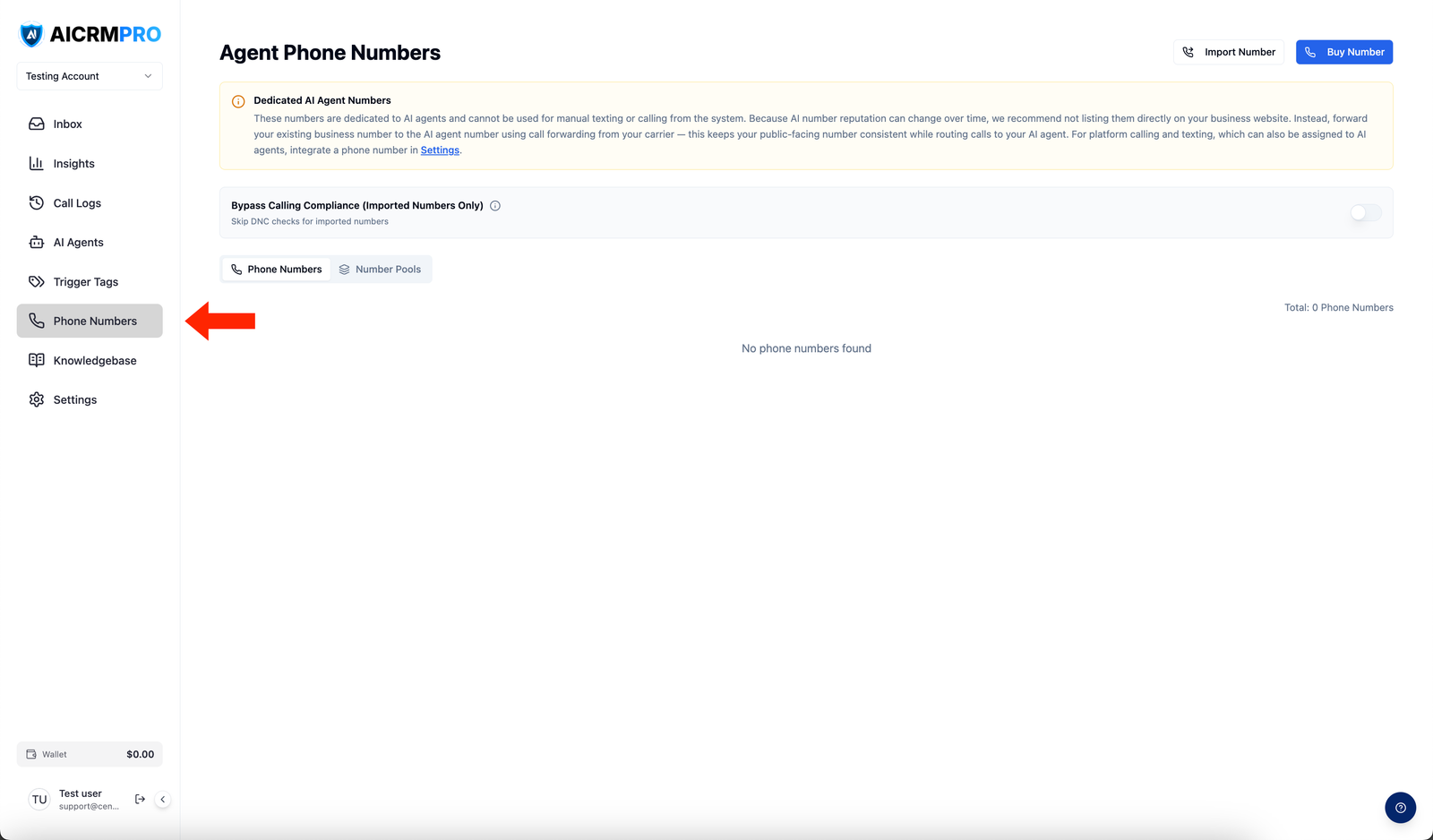
Add and configure business phone numbers in Centerfy

Provision US and Canadian phone numbers, configure call routing and IVR menus, and assign numbers directly to your AI voice agents.

Phone numbers in Centerfy AI are dedicated business lines that connect inbound callers to your AI voice agents or team members. Each number you provision gets its own routing configuration — you control exactly what happens when someone calls: which agent answers, what menu options are presented, and how calls are handled outside business hours.

Adding a phone number

  1. Open Phone Numbers

    Go to SettingsPhone Numbers and click Add Number.

  2. Choose your number

    Search by area code or enter a specific number. US and Canadian numbers are supported. You can also filter by number type (local or toll-free).

  3. Confirm provisioning

    Review the number details and click Provision Number. Your new number is active immediately — no waiting period.

Assigning a number to an AI agent

Once a number is provisioned, assign it to a voice agent so all inbound calls are handled automatically.

  1. Select the number

    From SettingsPhone Numbers, click the number you want to configure.

  2. Assign an agent

    Under Inbound Routing, select the AI agent from the dropdown. Save your changes.

From this point on, every call to that number goes directly to the assigned agent.

Call routing rules

You can route calls differently depending on conditions like time of day, caller location, or IVR selection. Configure routing rules from the number’s settings page under Call Routing.

Available routing conditions:

  • Time of day — route to your AI agent after hours, to a live team member during business hours
  • Caller location — send calls from specific area codes to specific agents or teams
  • IVR selection — route based on which menu option the caller pressed

IVR menus

An IVR (Interactive Voice Response) menu plays a greeting and presents callers with options — for example, “Press 1 for Sales, press 2 for Support.” Each option routes to a different agent or team member.

  1. Open the IVR editor

    Go to SettingsPhone Numbers, click your number, then select IVR.

  2. Add a greeting

    Enter the text for your greeting message. Centerfy converts it to speech automatically, or you can upload a custom audio file.

  3. Add menu options

    Click Add Option for each keypress you want to support. For each option, choose where the call routes — an AI agent, a team member, or another IVR submenu.

  4. Save and test

    Save your IVR and call the number to verify the menu works as expected.

Business hours routing

Route calls to your AI agent during off-hours and to live team members during business hours — or the reverse, depending on your setup.

  1. Configure business hours

    Go to SettingsBusiness Hours and set your open hours and timezone.

  2. Set routing rules

    On your phone number’s routing page, set a rule for During business hours and another for Outside business hours. Assign different destinations to each.

Call forwarding

Forward calls from a Centerfy number to a personal or external phone number when needed.

On the number’s settings page, enable Call Forwarding and enter the destination number. Forwarding applies to all inbound calls unless you combine it with routing rules to trigger only under certain conditions.

Voicemail

When a call goes unanswered, Centerfy can capture a voicemail for you.

Enable Voicemail on the number’s settings page and optionally record a custom voicemail greeting. All voicemail recordings are saved in Call History, where you can play them back or download them.

Number porting

If you have an existing business number you want to bring to Centerfy, you can port it over. Contact Centerfy support to start the porting process. Porting typically takes 5–10 business days depending on your current carrier.

© 2026 Centerfy AI. All rights reserved.